Troubleshooting & Reporting Problems
If you have questions, you can always email me or ask on the Discord server.
For complex problems and faster help, please include your log file. For privacy reasons, you can also send logs by email.
Advanced logging
Add the following to your DefaultEngine.ini:
[Core.Log]
LogOnsetVoip=VeryVerbose
LogOnsetAudioCapture=VeryVerbose
This will log useful information that helps diagnose issues. Log files may become large.
To fix and report crashes
- Ensure debug symbols are downloaded for your engine installation. In the Epic Launcher go to your engine version and select Options and download Editor symbols for debugging.
- Enable advanced logging (see above).
- Reproduce the issue in the editor or in a packaged development build of your project.
Common issues
I don’t hear myself when using voice.loopback or with multiple PIE sessions.
By default, the plugin should use the configured default input device of your OS. In some cases, a different microphone device is used. You can use the function UOnsetVoipLocalPlayerSubsystem::ChangeVoiceCaptureDevice to change the input device to a different one.
Jittery audio in editor but packaged builds are fine.
Ensure that Network Emulation is turned off. Edit -> Editor Preferences -> Level Editor -> Play -> Enable Network Emulation.
Clients hear no voice, very quiet voice, or choppy voice, and the log shows Connection not ready or saturated or dropped voice packets.
The network connection is likely saturated by other replicated traffic. Add the following to your DefaultEngine.ini and, if the issue remains, use Unreal’s Network Profiler to find replication/RPC traffic that can be reduced.
[/Script/OnlineSubsystemUtils.IpNetDriver]
MaxClientRate=200000
MaxInternetClientRate=200000

[/Script/Engine.Player]
ConfiguredInternetSpeed=200000
ConfiguredLanSpeed=200000
On macOS, microphone capture does not work.
Add the following to your Info.plist:
<key>NSMicrophoneUsageDescription</key>
<string>Required by VoIP.</string>
The string value can be customized.
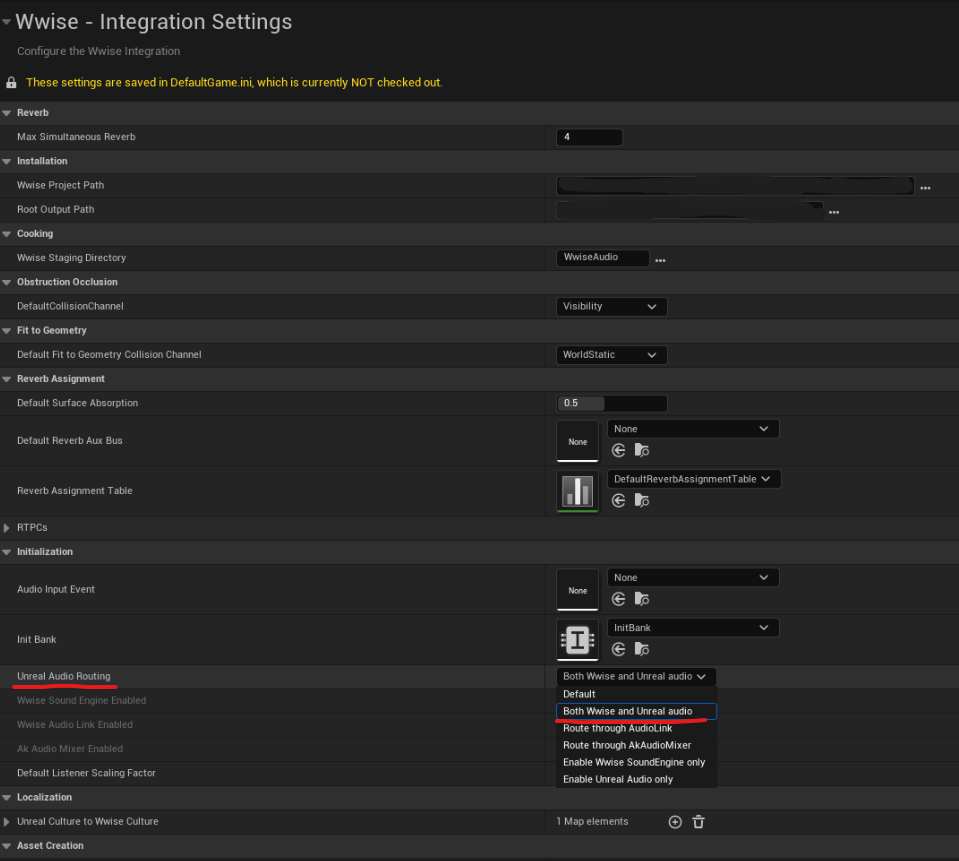
Wwise: Voice capture does not work if the Wwise plugin is enabled.
Go to Edit -> Project Settings -> Wwise - Integration Settings -> Unreal Audio Routing and set it to “Both Wwise and Unreal audio” or use “Route through AudioLink”. Try what works for you.
After possession or switching characters the voice/proximity does not work.
Ensure your Character Blueprint is replicated.
Note: I did not test Wwise myself. The information provided here was reported by users.
This VoIP plugin plays voice through a UAudioComponent with a USoundWaveProcedural that feeds float PCM through Unreal's standard audio mixer path. This means it works like any other standard audio in the engine.
Ask the creator of your third-party audio plugin how to handle standard Unreal Audio for your needs.
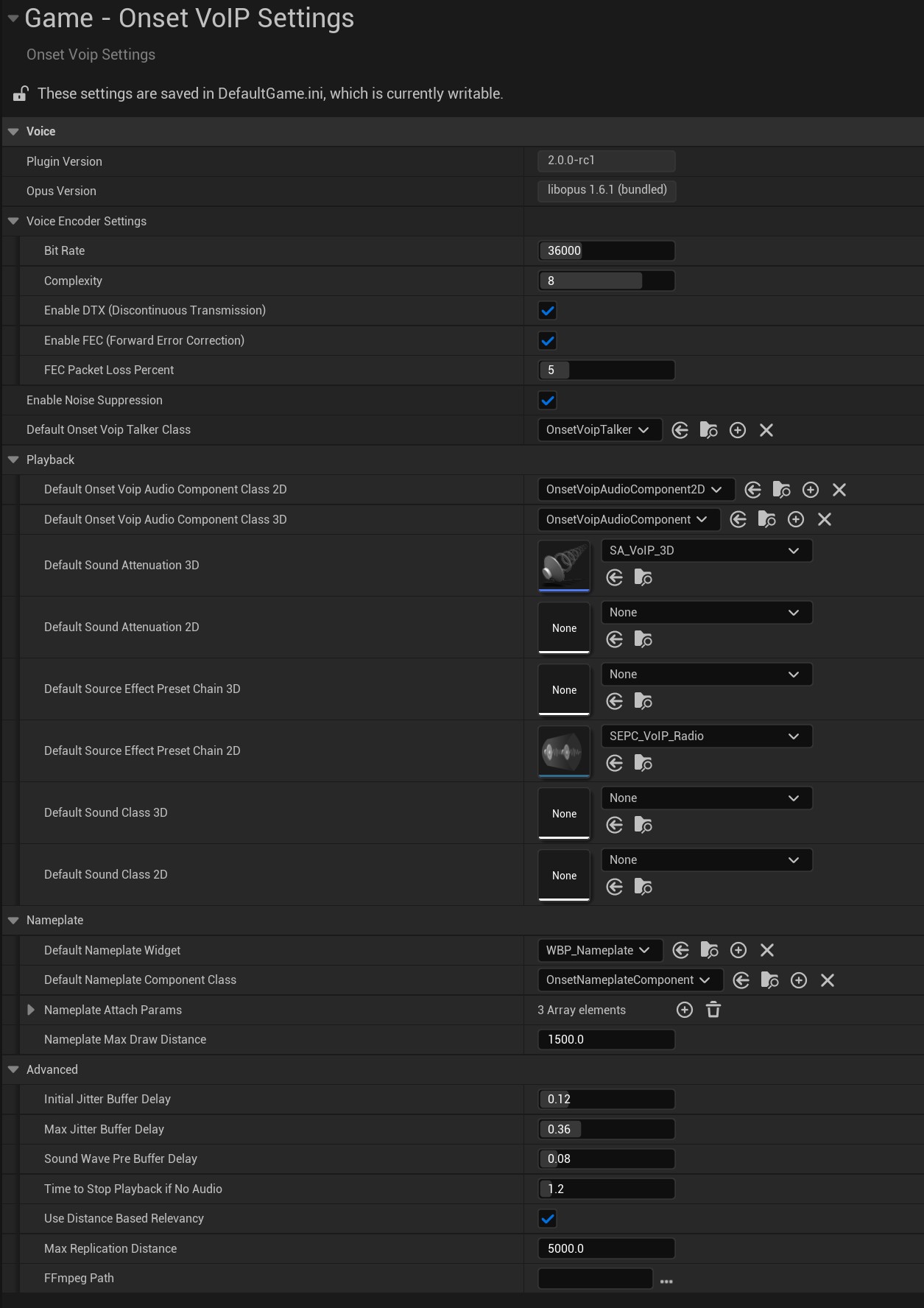
Screenshot of all plugin settings inside Edit -> Project Settings -> Onset VoIP Settings: